Content and playlists
Everything a screen shows starts in your Content Library: the photos, videos and PDFs you upload. You put them in a playlist, the running order a screen loops through, and set how long each one stays up. Then you publish the playlist and give it to a screen or a whole group of screens.
This guide covers uploading, the Content Library, building a playlist, and the one step people most often miss: Publish. If you only want to put a few photos on a screen, the Simple view does it in three clicks and publishes for you.
Before you start
- The Content and Playlists pages are in Advanced view. New accounts start in Simple view. Switch with the Simple / Advanced buttons at the top of the menu.
- Every change to a playlist is a draft. Screens keep showing the last published version until you press Publish. See Publish your changes.
Upload content
- Choose Content in the sidebar, under Publish. This is the Content Library.
- Press Add content.
- Drop your files on Upload files, or click browse files. You can pick many at once.
- Watch the Uploads panel. Each file goes from Uploading to Processing to Ready. If your connection drops, you are asked Resume the upload? when you come back.
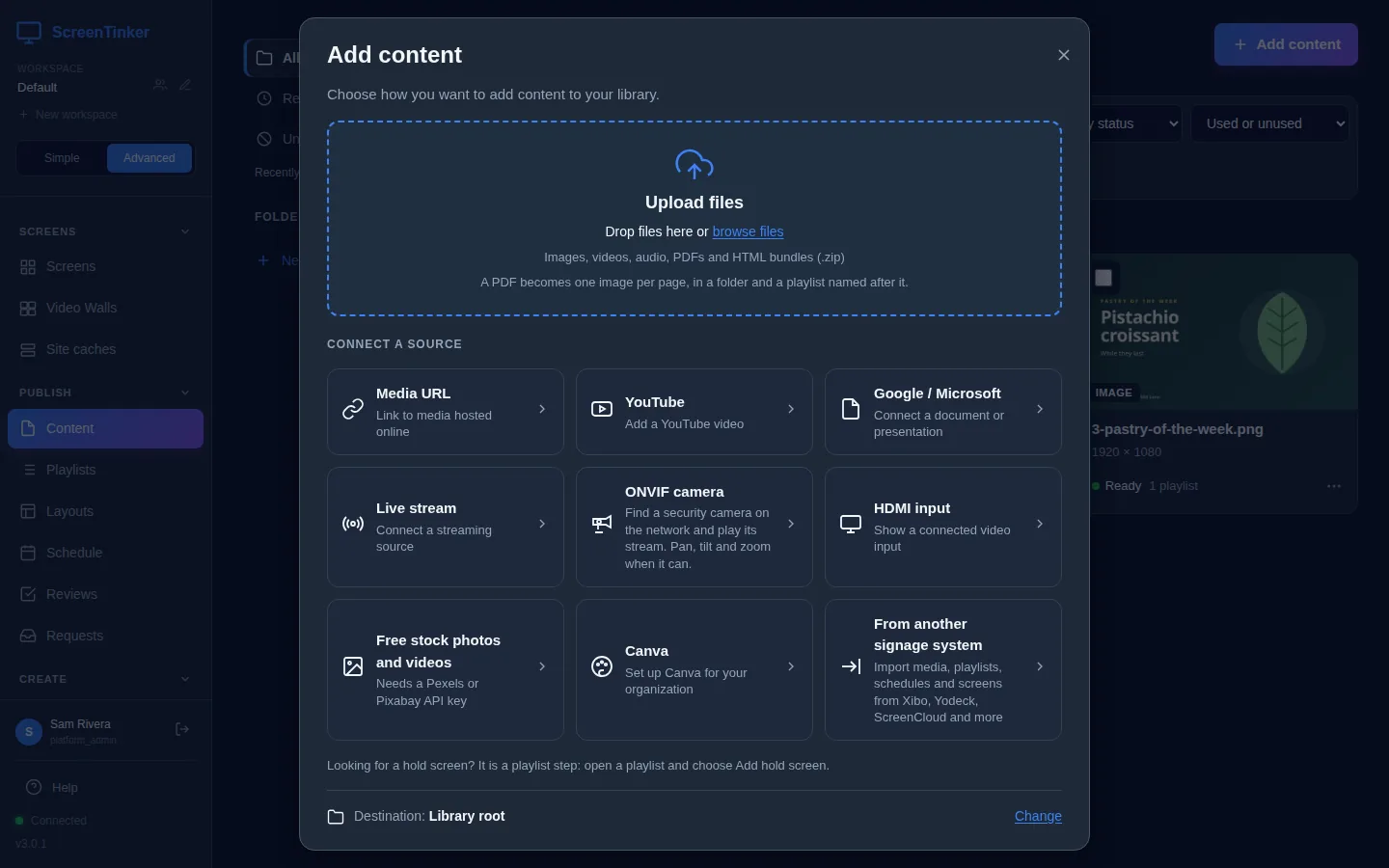
You can also drag files straight onto the Content Library page. Destination at the bottom of the window picks the folder the files go into.
What you can upload
- Images: JPEG, PNG, GIF, BMP, WebP, AVIF, HEIC and SVG.
- Video: MP4, WebM, OGV, AVI, MOV and MKV. MP4 (H.264) plays on the most screens; see a video will not play.
- Audio: MP3, M4A, OGA, WAV and FLAC.
- PDF: each page becomes an image, in a folder and a playlist named after the PDF.
- HTML bundles: a .zip of a web page and its files.
ScreenTinker checks what is really inside each file, not just its name. A file it cannot recognise is refused.
The other tiles add things that are not files: Media URL (a picture or video hosted on another website), YouTube, Live stream (an .m3u8 or rtsp:// address), ONVIF camera and HDMI input (only on Android boxes with an HDMI input, such as the Fire TV Cube). Google / Microsoft adds a document or presentation as a widget, not as a library file.
Size and storage limits
Two limits apply: one for a single file, and one for everything you have uploaded together.
- One file: if a file is too big, the upload fails with "That file is larger than the … MB limit for a single upload", which tells you the limit.
- All your files: each plan includes a set amount of storage. When it is full, uploads stop with "Storage limit reached". Delete files you no longer use (the Unused list helps), or move to a larger plan.
The Free plan includes 500 MB of storage; paid plans include more (see the pricing page). Subscription in the menu shows how much Storage you have used. Media URL is not on every plan; where it is missing, the tile shows a Pro label. Your uploads are stored by ScreenTinker, and screens download them from ScreenTinker.
By default every account is on the Enterprise plan, which has no storage limit, so the only limit is your server's disk. A single file can be up to 500 MB unless whoever runs the server changes it (the MAX_FILE_SIZE setting). Uploads are kept on the server's own disk, in its uploads folder, unless it has been set up to keep them in S3-compatible or Azure storage. Either way, screens fetch files through your server.
Find your way round the Content Library
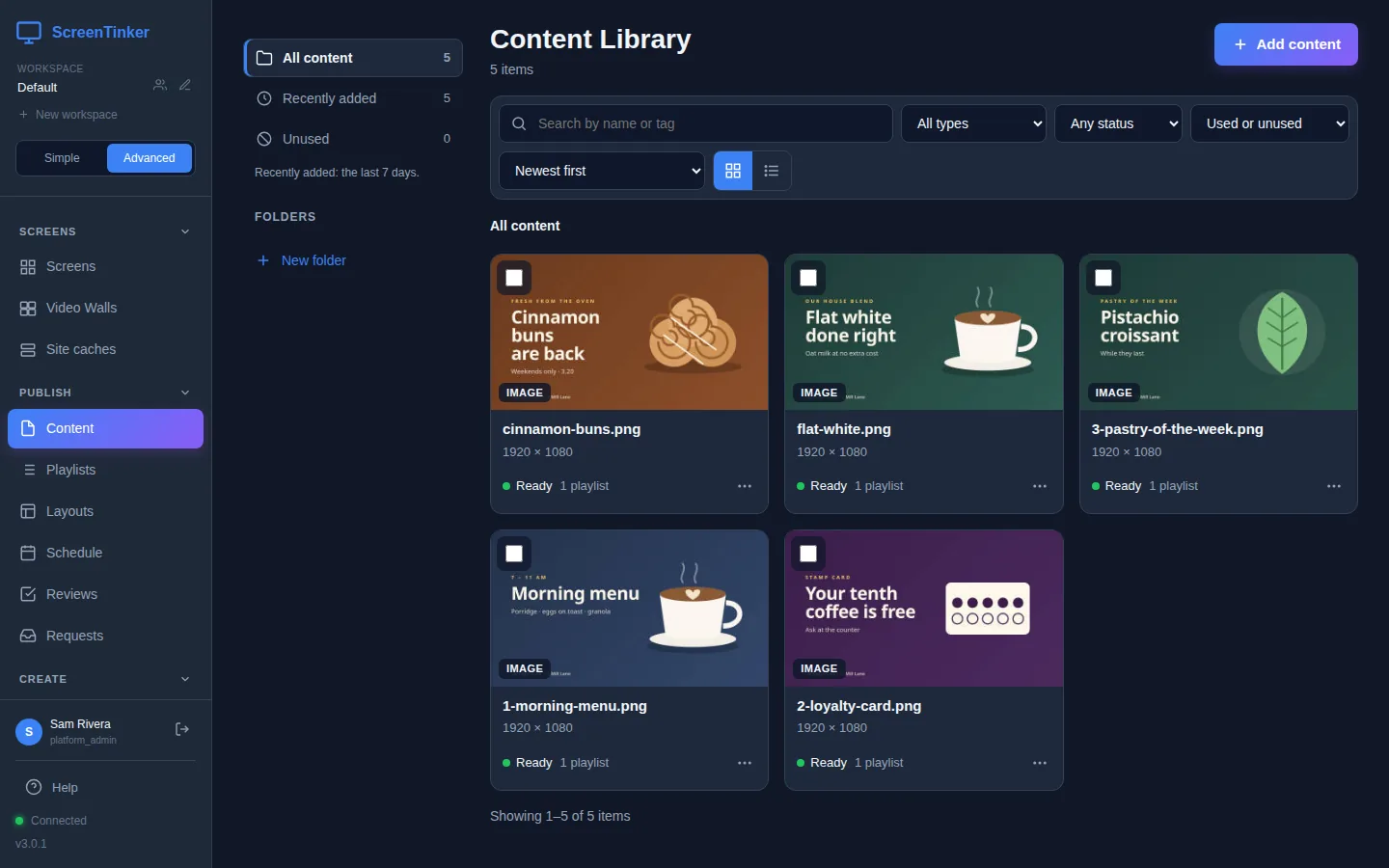
- Search by name or tag, and narrow the list by type, status (Any status) and usage (Used or unused). The buttons next to the sort list switch between grid and list view.
- Folders: press New folder on the left. To move files, use Move to folder…. Deleting a folder moves the files in it back to the top level, the Library root.
- The … menu on each card has Open details, Full preview, Edit details… (name, folder, Tags, expiry date, replace the file), Add to playlist…, Move to folder…, Set expiry date… and Delete….
- Tick several cards to add, move, tag or delete them all at once.
Deleting a file that is in use takes it out of every playlist, wall and schedule that uses it, and the screens are updated. The delete window tells you how many of the files are in use first. It cannot be undone.
Make a playlist
- Choose Playlists in the sidebar, under Publish.
- Press + New Playlist, type a Playlist name and, if you like, a Description (optional).
- Press Create. The new playlist opens, empty.
The list may also show playlists tagged auto. ScreenTinker makes these when you add content to a screen directly, from its page or from the Simple view. Untick Show auto-generated to hide them. A playlist with unpublished changes is tagged draft.
Add, order and time the items
- In the playlist, press + Add Content. The Add Content to Playlist window lists your library. Press Add next to each item you want, or tick several and press the button that appears (for example Add 3 selected), then Close. The Widgets and Playlists tabs add a widget or a whole other playlist.
- Put them in order: drag a row up or down, or use the arrows (Move up, Move down) at the right of each row. To sort the whole list once, pick an option in Sort, such as Name (A-Z), and press Apply order.
- Set how long each shows: type the seconds in the item's Duration box.
- When it looks right, press Publish.
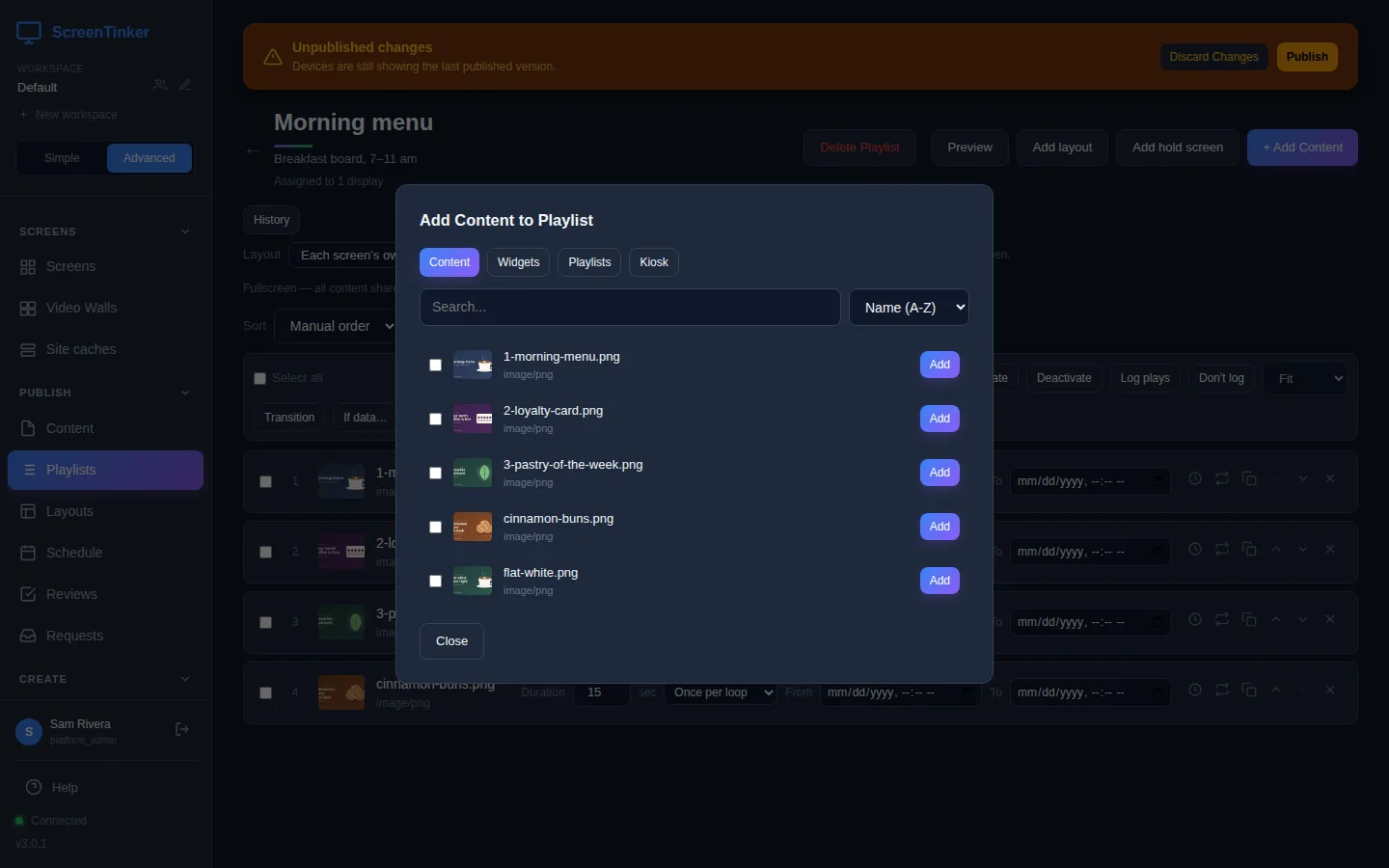
New items get a sensible duration to start with: 10 seconds for a photo or widget, the clip's own length for a video or audio file, and 5 minutes for a live stream. A YouTube item also has Play to end, which moves on when the video finishes.
The other controls on each row:
- From and To: a date and time window. Outside it, the screen skips the item. Leave them empty for "always".
- The clock icon (Schedule) limits the item to certain days and hours, such as weekdays 7 to 11 am. The scheduling guide explains it.
- The other icons replace the item with different content, duplicate it, and remove it.
Above the list, Order plays the items In order, in a Shuffle, or as Weighted random (each item then gets a Weight). Tick several rows to change them together with the buttons above the list, for example Duration or Delete. Transition there plays a transition into the ticked items, once your workspace has transition widgets (see widgets, layouts and transitions). Add hold screen adds a pause step: a blank screen or the last frame frozen, for 1 to 86400 seconds.
Publish your changes
As soon as you change a playlist, an orange Unpublished changes banner appears at the top. Your screens carry on showing the last published version until you press Publish. Then they get the new version, and you see "Playlist published — devices updated".
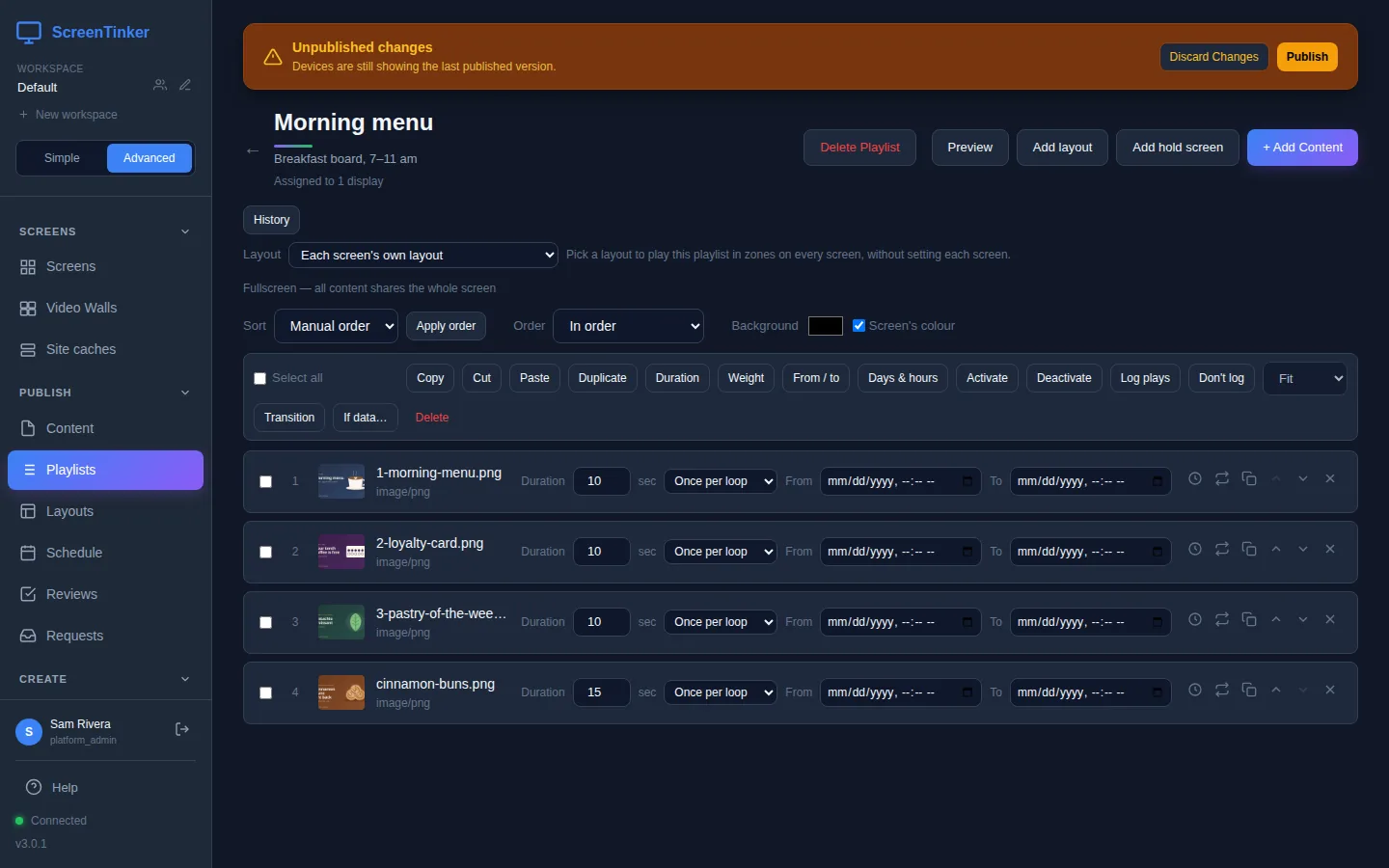
- Discard Changes throws away everything since the last publish and puts the playlist back as it was.
- If the banner says "This playlist has never been published. Devices will show nothing until you publish.", a screen given this playlist shows "Waiting for content..." until you publish, or its Default Content picture if it has one (see The screen says "Waiting for content...").
- The same banner, with Publish, also appears on the screen's own page when the playlist it plays has unpublished changes.
- Adding files from the Content Library with Add to playlist… also leaves a draft: "Screens show it once you publish the playlist."
This is the most common reason a screen "ignores" a change. Edits, new items, durations and item schedules all wait in the draft. If your workspace reviews changes before they go out, Publish sends the playlist for review instead, and screens keep the live version until it is approved.
Put a playlist on a screen or a group
The playlist page shows how many screens use it ("Assigned to 1 display"), but you choose the playlist from the screen or the group:
- One screen: open the screen from Screens, choose the Playlist tab and pick the playlist in the Playlist list. It changes straight away ("Playlist changed").
- A group: on the Screens page, pick the playlist in Set Playlist... on the group's bar and confirm. Every screen in the group gets it. Playlists with unpublished changes are marked "(draft)"; the screens get the published version.
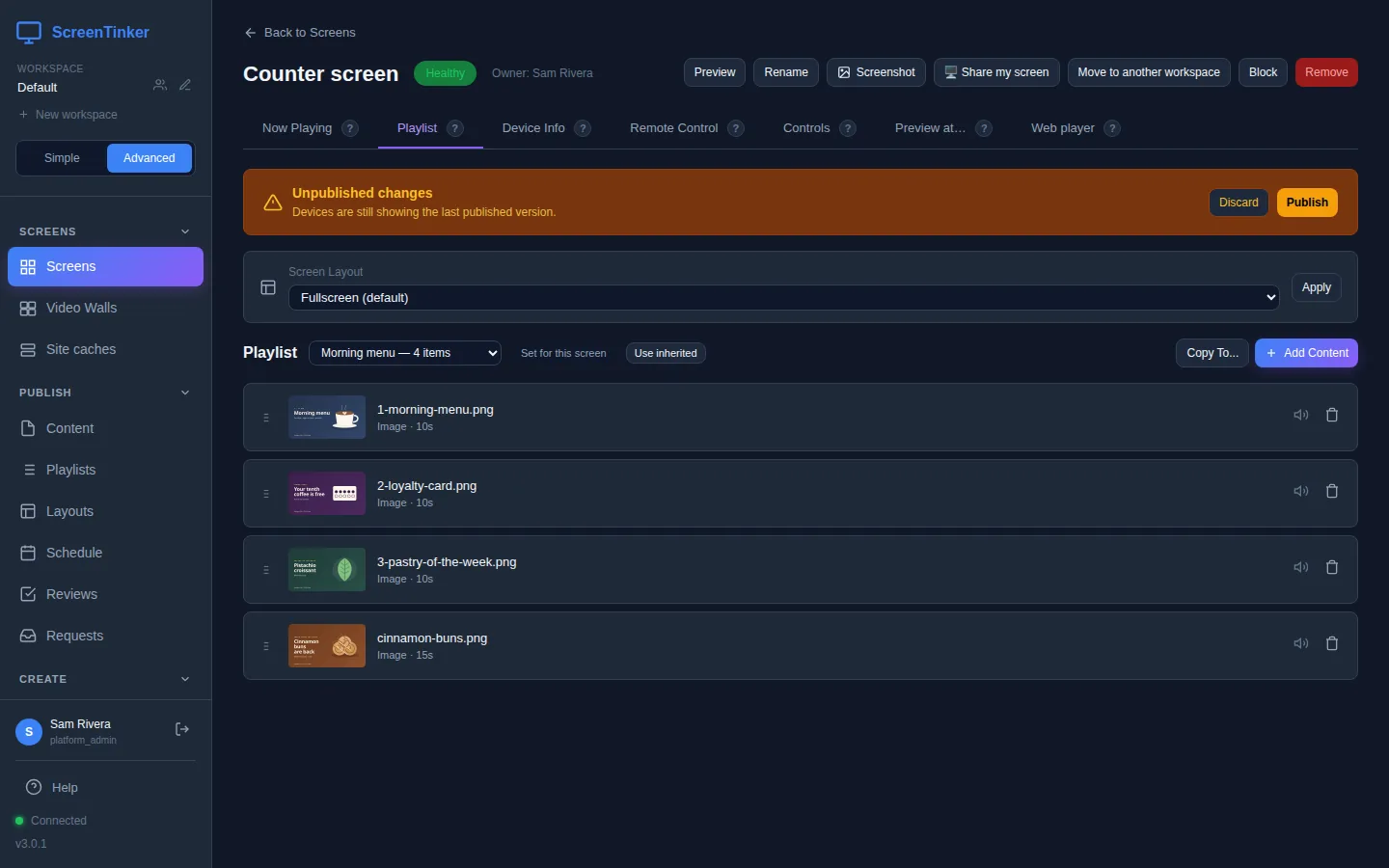
A playlist chosen on the screen itself wins over its group's. Use inherited hands the choice back to the group. A schedule can swap in a different playlist at set times; see Scheduling content on your screens.
In Simple view
If you stay in Simple view, you never see a draft: these two tasks on the home page publish for you.
- Change what a screen shows: pick the screen, then choose Replace what it shows now or Add to what it shows now. Drop new photos or videos, or pick some under Or pick from your photos and videos and press Show selected. Or pick a screen under Or show the same as another screen and press Use this.
- Upload photos: choose your files, then tick the screens under Which screens should show it? and press Show on these screens. Untick every screen to just keep the files for later.
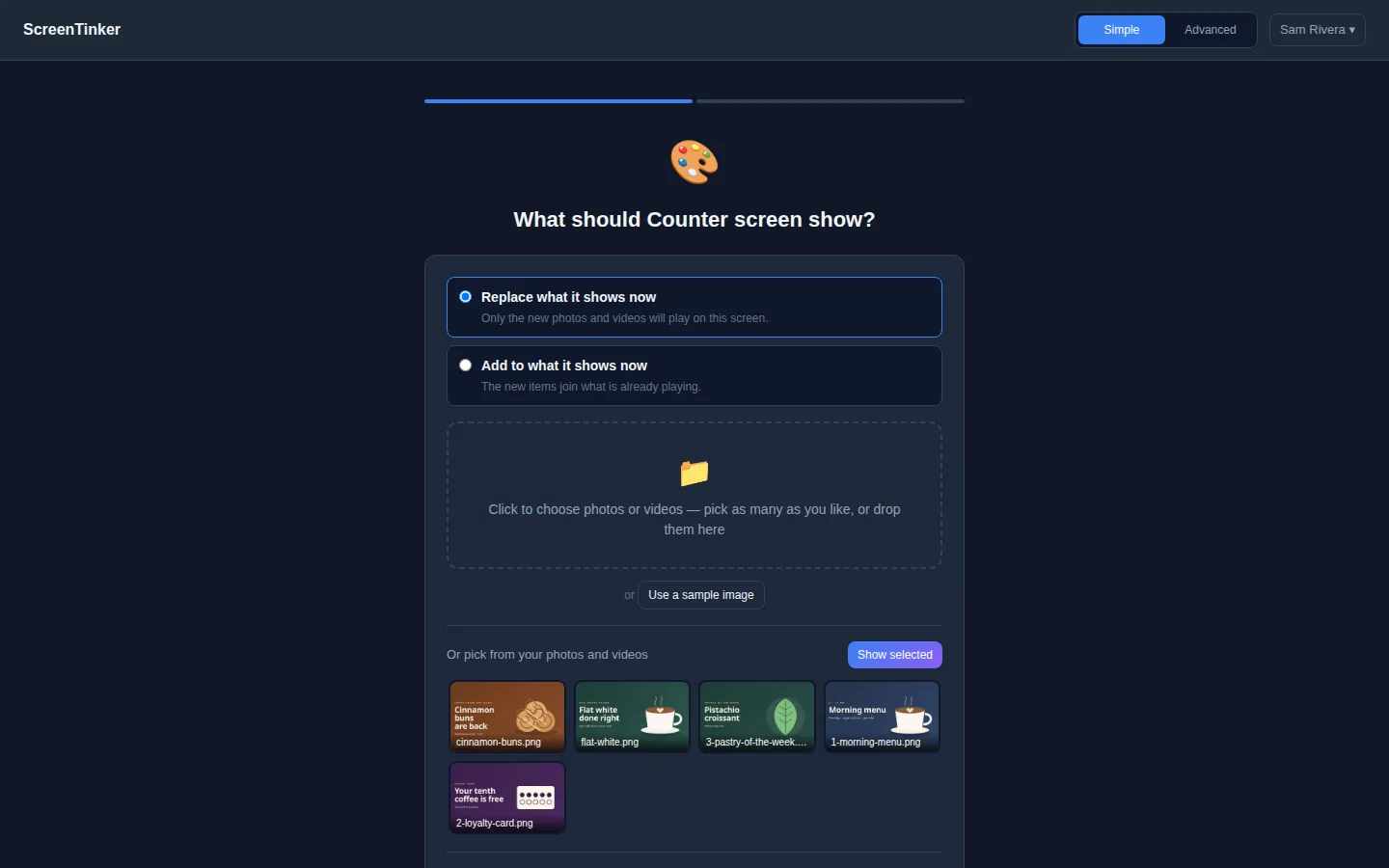
Replace never edits a playlist other screens share: the screen gets its own list. Add adds to the playlist the screen plays now, so if other screens play the same playlist, they get the new items too (the page tells you which).
If someone has unfinished changes to that playlist in Advanced view, Add to what it shows now publishes them too, together with your new items.
FAQ
I changed a playlist but the screen still shows the old one.
Open the playlist. If the Unpublished changes banner is there, press Publish. If not, open the screen and check which playlist its Playlist tab shows, and whether a schedule is running (the Preview at… tab tells you).
Can one file be in several playlists?
Yes. The file is stored once, and each card in the library shows how many playlists use it. Changing an item's duration in one playlist does not change it in the others.
Can a screen play two playlists at once?
Not on the full screen: a screen plays one playlist at a time. To show several things side by side, use a layout with zones; see Layouts and zones. You can also add one playlist inside another with the Playlists tab of + Add Content.
My upload was refused.
Check the message in the Uploads panel. It is usually the file size limit, a full storage allowance, or a file type ScreenTinker does not accept (see What you can upload).
Try it on your own screens
Start a 14-day Pro trial on hosted ScreenTinker: up to 15 screens, every feature, no credit card.
Or host it yourself, free and open source: self-hosting guide · GitHub