Layouts and zones: split a screen into areas
A layout divides a screen into areas called zones: a big one for your pictures, a corner for the clock, a column for today's specials, a strip along the bottom for a ticker. Each zone plays its own items, one after another, on its own timer.
The widgets, layouts and transitions guide walks through one example from start to finish: make a layout, make a clock and a ticker, put them in zones. This guide goes deeper into the layout itself: which layout a screen actually uses, where items without a zone go, the default zone for new items, what happens when you switch a playlist to another layout, and portrait and 4:3 versions.
Before you start
- Layouts are in Advanced view. New accounts start in Simple view. Switch with the Simple / Advanced buttons at the top of the menu. The Layouts page, the playlist's Layout row and the screen's Screen Layout box are all Advanced only (once a playlist or screen has a layout, its row also shows in Simple view).
- Playlist changes are drafts until you press Publish. That includes choosing a layout for a playlist and moving an item to another zone. Changes to the layout itself are different: see the layout editor.
Which layout a screen uses
A layout can be set in four places. When more than one applies, the screen uses the first of these:
- Head office. If your organization uses head office (corporate) playlists, a layout set by head office wins over everything else.
- A schedule that is running, if it has a Layout override. See Scheduling.
- The playlist's layout, the Layout row in the playlist editor.
- The screen's own layout, the Screen Layout box on the screen's page. With none, the screen is Fullscreen (default).
For most people the playlist is the right place. Set it once and every screen that plays the playlist draws the same zones, including screens you add later. A screen's own layout is for the case where one playlist must look different on different screens.
Put a layout on a playlist
- Open Playlists and open the playlist.
- In the Layout row, pick a layout. Your own layouts come first, then the templates, marked "[Template]". Each screen's own layout means the playlist has none and every screen uses its own.
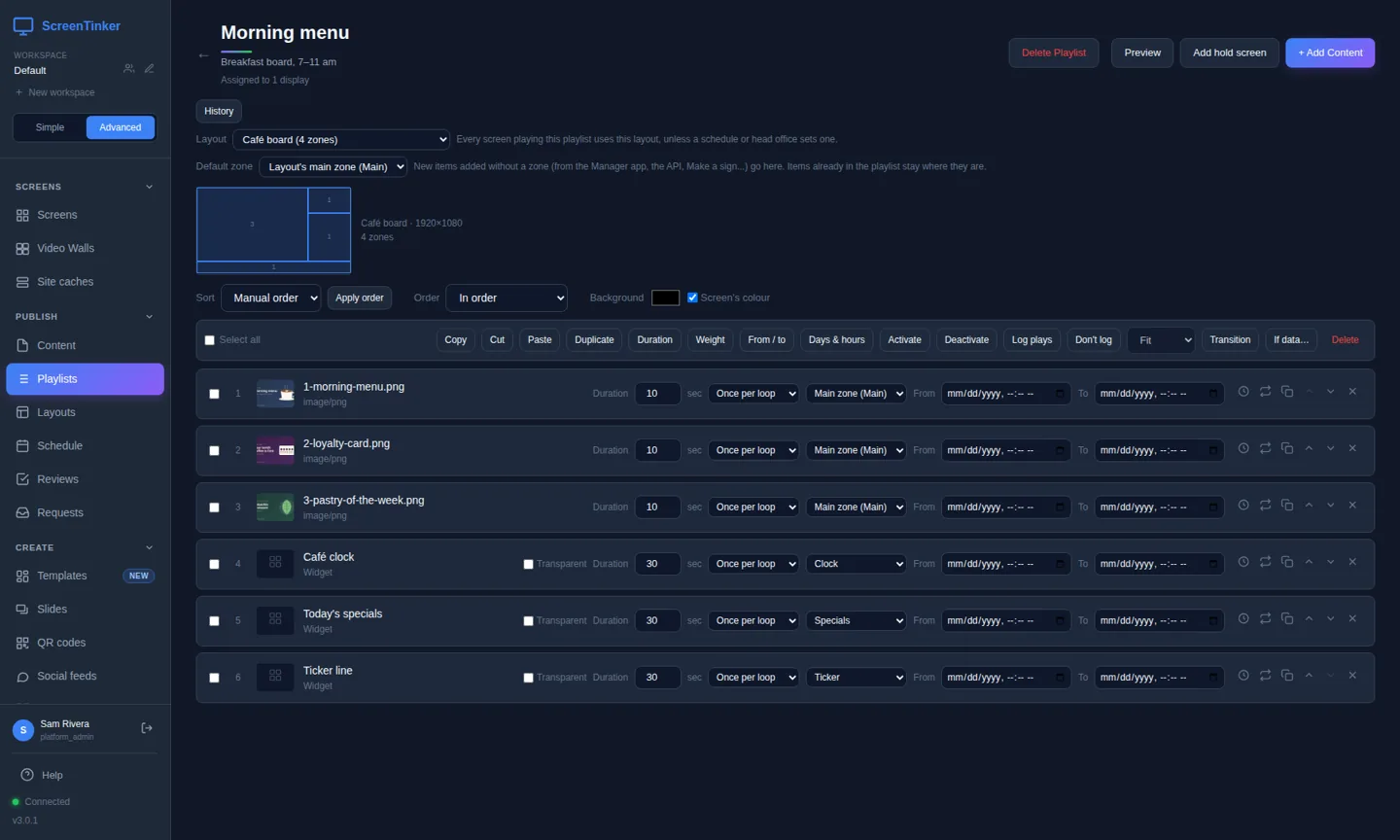
- Every item now has a Zone picker. Set the zone for each item that should not play in the main zone (next section).
- Press Publish. Screens keep showing the old version until you do.
Choose a zone for each item
Each item row has a Zone picker listing the layout's zones by name. Change it and the toast says "Zone changed. Publish to send it to screens."
- Main zone (Main) means the item has no zone of its own and plays in the layout's main zone. The name in brackets is the zone that is marked as the main zone in the layout. If no zone is marked, the largest zone is the main zone.
- A zone with several items plays them in turn, each for its Duration. A zone with one item shows it all the time. Zones do not wait for each other.
- A picker with a red border that says A zone of another layout belongs to a layout the playlist no longer uses. Pick a zone of the current layout for it.
The Zone picker only appears when the playlist has its own layout with two or more zones. A playlist left on Each screen's own layout shows no zone pickers.
The default zone for new items
Below the Layout row, Default zone sets where new items go when nobody picks a zone for them: items you add with + Add Content, and items added from the Manager app, the API, Make a sign and content requests. It starts on Layout's main zone (Main).
This is useful when one zone gets new content all the time, for example a "Specials" zone that staff fill from their phones. Set Default zone to that zone and new items land there by themselves.
The default zone is written onto each item at the moment it is added. Items already in the playlist stay where they are, and changing the default later moves nothing. Because it does not change any item, it is saved straight away ("Default zone saved. New items added without a zone will go there.") and there is nothing to publish. The new items themselves still need Publish, like any other change.
Switch a playlist to another layout
When you pick a different layout and some items sit in zones of the old one, ScreenTinker asks where they should go before it changes anything.
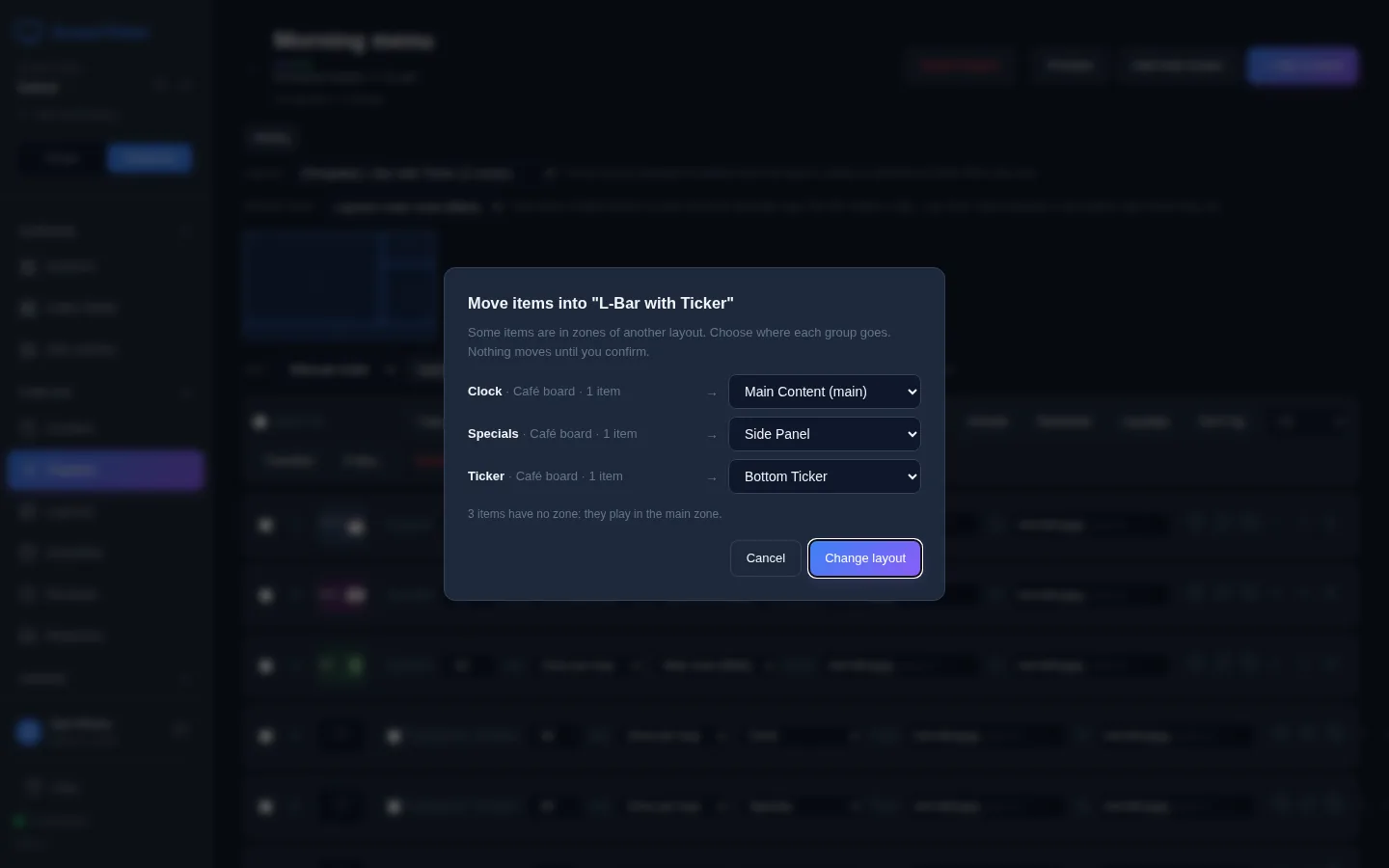
The suggestion matches zones with the same name first, then the zone in the same part of the screen, and sends anything left over to the main zone. Change the targets you don't like and press Change layout, or Cancel to keep the old layout. Like every playlist change, the new layout and the moved items reach the screens together when you press Publish.
Choosing Each screen's own layout again does not open the dialog: the items keep their zones.
A screen's own layout
Open the screen from Screens and choose the Playlist tab. The Screen Layout box at the top has the layout set on this screen. Pick one and press Apply; it takes effect at once.
The line under it tells you which layout is on the screen right now and why, for example that the screen's playlist chose it. That is the quickest way to answer "why is my screen split like this?".
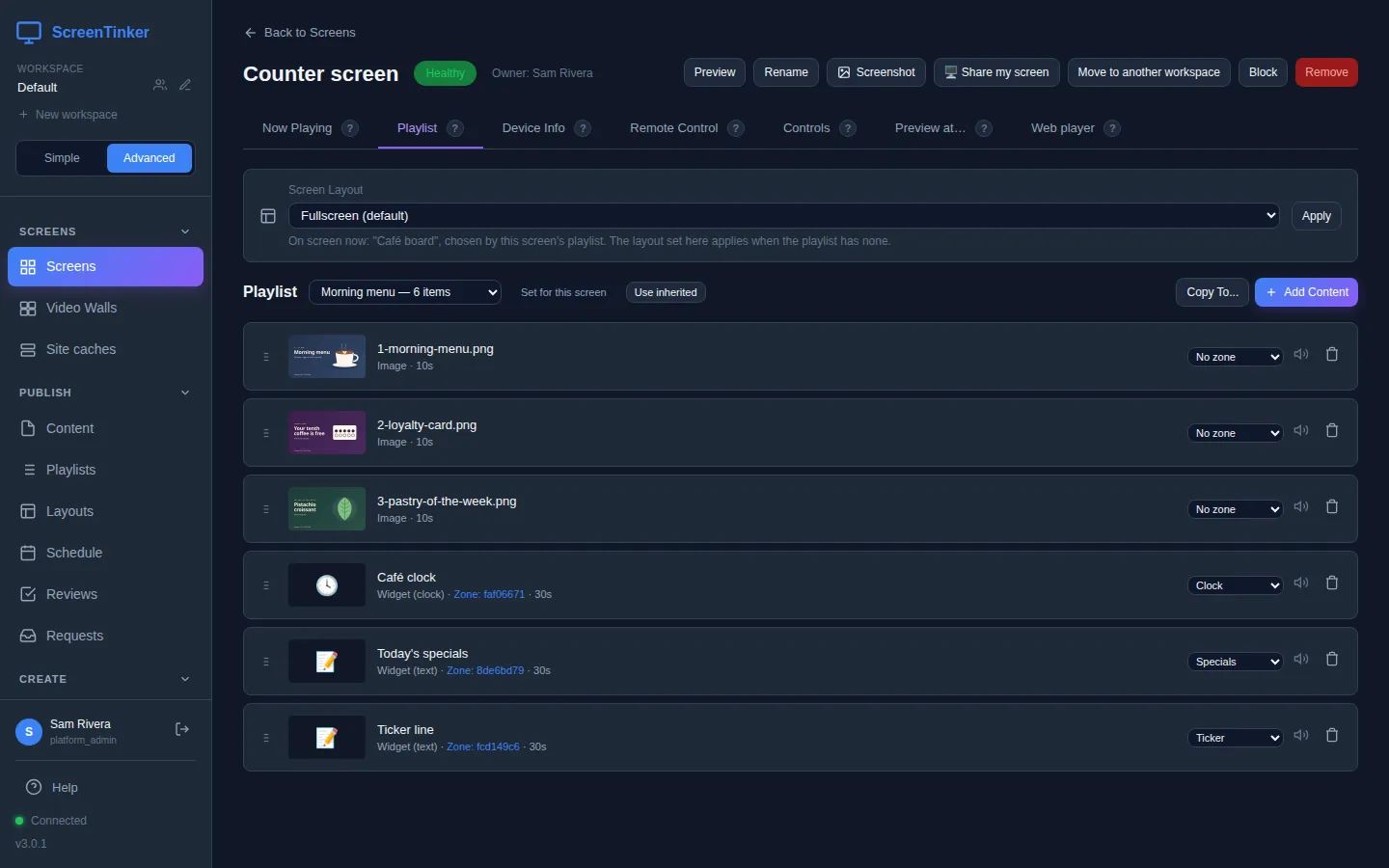
When only the screen has a layout, items without a zone fill a zone that has nothing of its own; the main zone tick does not apply there. If you want control over where every item plays, put the layout on the playlist instead.
The layout editor
Open Layouts, then Edit on one of My Layouts, Use Template on a template (you get your own copy, with "(Copy)" after its name), or New Layout (it starts with one full-screen zone called "Main"). Choose a zone on the canvas or in the Zones list to see its Properties.
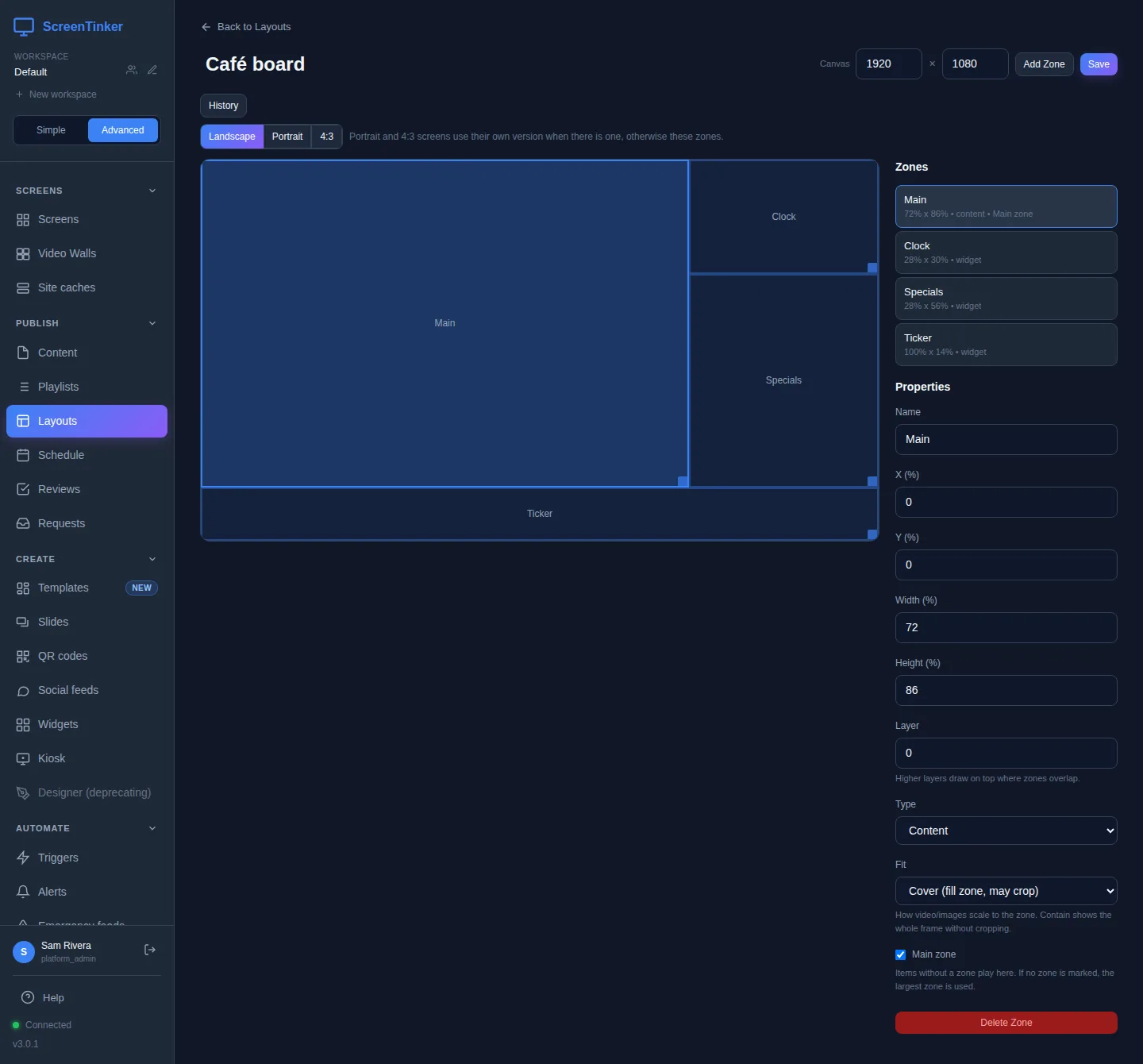
- Moving and sizing. Drag a zone to move it and drag its bottom-right corner to resize it. It snaps to the edges and centre of the canvas and to the other zones, with guide lines. Hold Alt while you drag to place it freely. For exact sizes, type X (%), Y (%), Width (%) and Height (%). Zones are in percent, so a layout fits any screen size.
- Canvas is the shape you draw on, 1920 × 1080 by default. Set it to your screens' resolution if they are not 16:9.
- Layer: where zones overlap, the higher layer is drawn on top. Use it for a small picture-in-picture zone over a big one.
- Fit: Contain shows the whole picture and may leave bars, Cover fills the zone and may crop the edges, Stretch fills it and may distort.
- Main zone: tick it on the zone where items without a zone should play. Only one zone can have it; ticking another clears the first.
A layout is not a draft like a playlist. When you press Save, every screen using the layout gets the new zones within moments, with no Publish. If your workspace requires changes to be approved, the toast says the layout was saved as a draft instead, and screens keep the old zones until it is approved. Deleting a layout asks first ("This cannot be undone") and also changes the screens using it at once.
Portrait and 4:3 versions
A layout drawn for a wide screen looks squashed on a screen hung on its side. Instead of making a second layout, give the same layout a portrait version:
- In the layout editor, choose Portrait (or 4:3) next to Landscape.
- Press Create portrait version (or Create 4:3 version). ScreenTinker arranges the same zones for that shape as a starting point.
- Move and resize the zones until it looks right, then press Save.
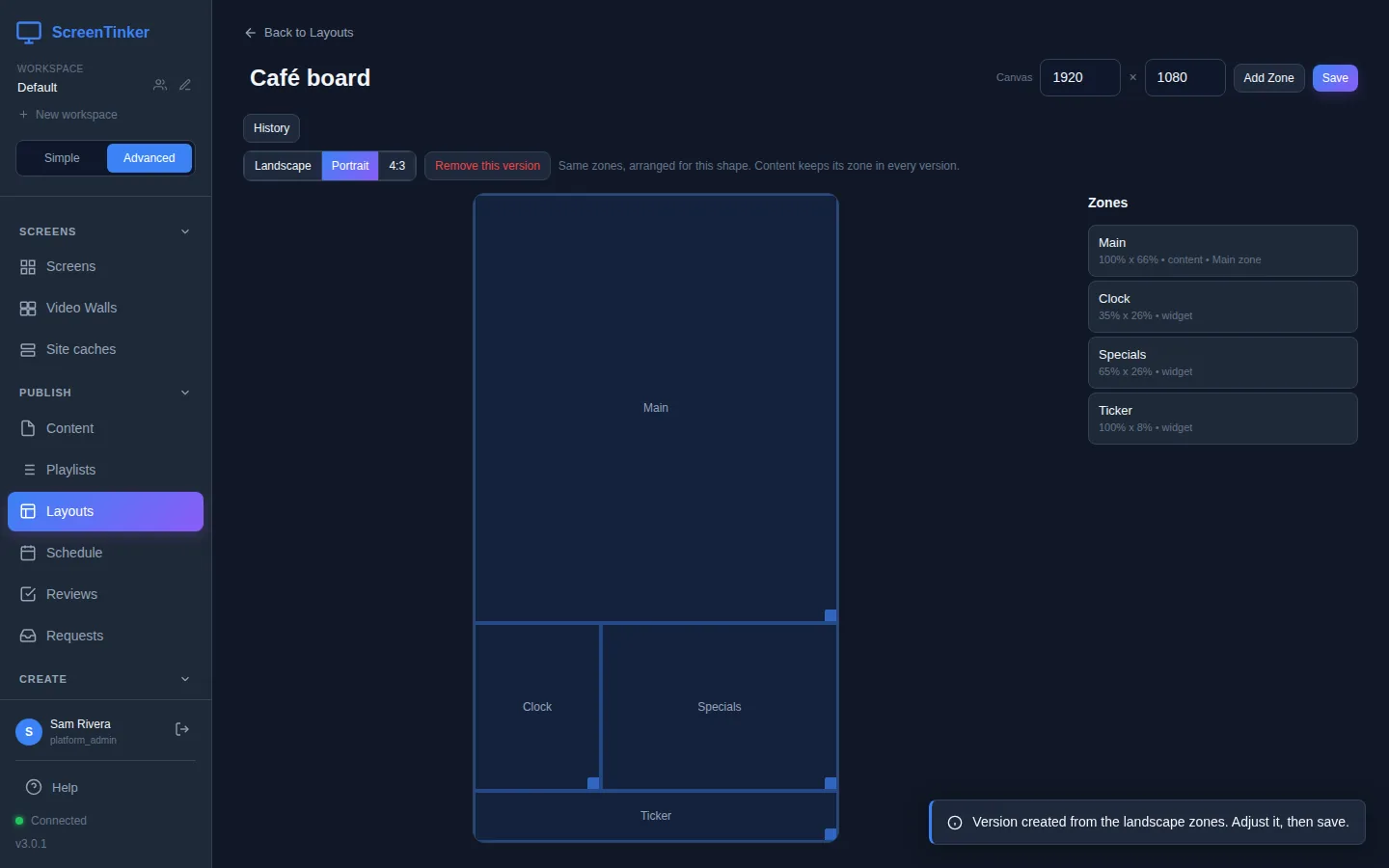
They are the same zones, so you don't have to change the playlist: the clock stays in "Clock" whichever way the screen is hung. Each screen gets the version for its shape, worked out from its Orientation / Rotation setting and the resolution it reports. A tall screen uses the portrait version, a nearly square one (4:3, 5:4) the 4:3 version, and a wide one the landscape zones. A screen whose shape has no version uses the landscape zones. Remove this version deletes it when you save.
What the screen shows
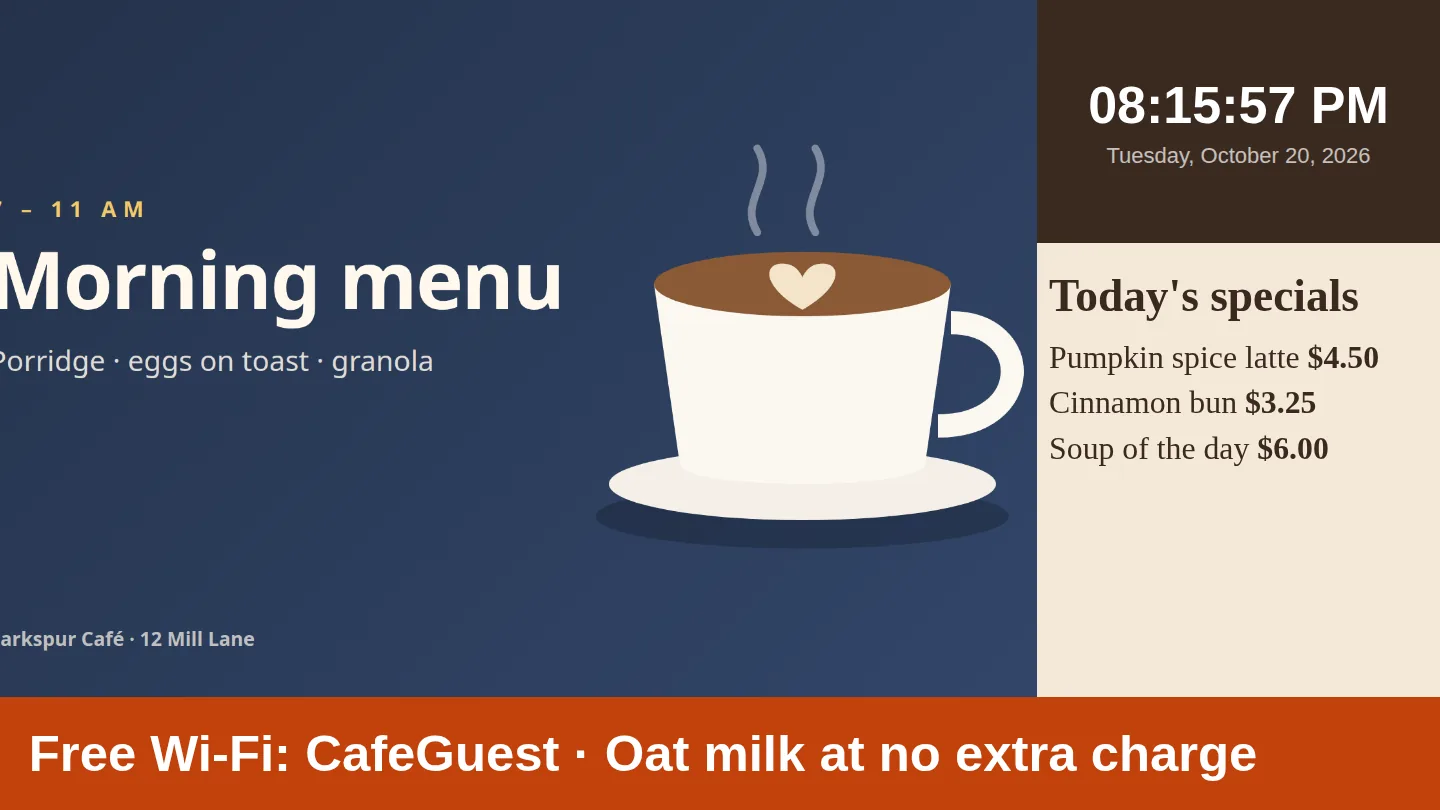
- An empty zone stays empty. A zone with no items shows nothing; other zones' items are not copied into it. Only if no zone has anything at all does the screen show the current item in the first zone, so it is never blank.
- A layout with one zone plays everything full screen.
Background colours
Zones have no colour of their own: there is no colour setting in a zone's Properties, and the screen shows whatever is behind a zone that its content does not cover. To colour what shows behind your content:
- In the playlist editor, untick Screen's colour next to Background and pick a colour. It is painted behind everything the playlist shows, on every screen, after you Publish.
- Or set the screen's own Background colour on its Device Info tab. It is black unless you change it.
- To fill one zone with colour, give the zone something to show: a picture in that colour, or a Text/HTML widget with a background. Tick an item's Transparent box to make a widget see-through, so the colour behind it shows.
FAQ
I moved an item to another zone, but the screen still shows it in the old place.
Press Publish. Zone changes are drafts, like every playlist change. If it still doesn't move, open the screen's Playlist tab: the note under Screen Layout says whether a schedule or head office has put a different layout on the screen.
I set a layout on my screen, but it isn't used.
The playlist has its own layout, and a playlist's layout wins over the screen's. Either set the playlist's Layout row to Each screen's own layout, or change the layout there.
New items keep landing in the wrong zone.
Set the playlist's Default zone to where they should go. It only affects items added from now on, so move the ones already there with their Zone picker, then Publish.
Can I group screens that hang in different directions on one playlist?
Yes. Put the layout on the playlist and give the layout a Portrait version. Each screen uses the version for its own shape.
Try it on your own screens
Start a 14-day Pro trial on hosted ScreenTinker: up to 15 screens, every feature, no credit card.
Or host it yourself, free and open source: self-hosting guide · GitHub