Scheduling content on your screens
Every screen has a playlist it normally plays. A schedule swaps in a different playlist for a while: the lunch menu from 11 to 2 on weekdays, brunch at the weekend, a holiday promotion for one week. When the schedule ends, the screen goes back to its normal playlist by itself.
This guide covers the Schedule calendar, how to make a schedule repeat, what happens when two schedules overlap, and how to check what a screen will show before it happens. It also covers the smaller tool: limiting one item inside a playlist to certain days and hours.
Before you start
- You need a playlist to schedule. Make it and press Publish first. A schedule can point at a draft playlist (the list marks it "(draft)"), but a screen shows only what has been published.
- The calendar is in Advanced view. New accounts start in Simple view. Switch with the Simple / Advanced buttons at the top of the menu.
The Schedule calendar
Choose Schedule in the sidebar. You get a week calendar, with buttons for Day, Work week, Week and Month. On the left, Calendars lists your screens, groups and video walls. Untick one to hide its schedules, or type in Find a screen or group to narrow the list.
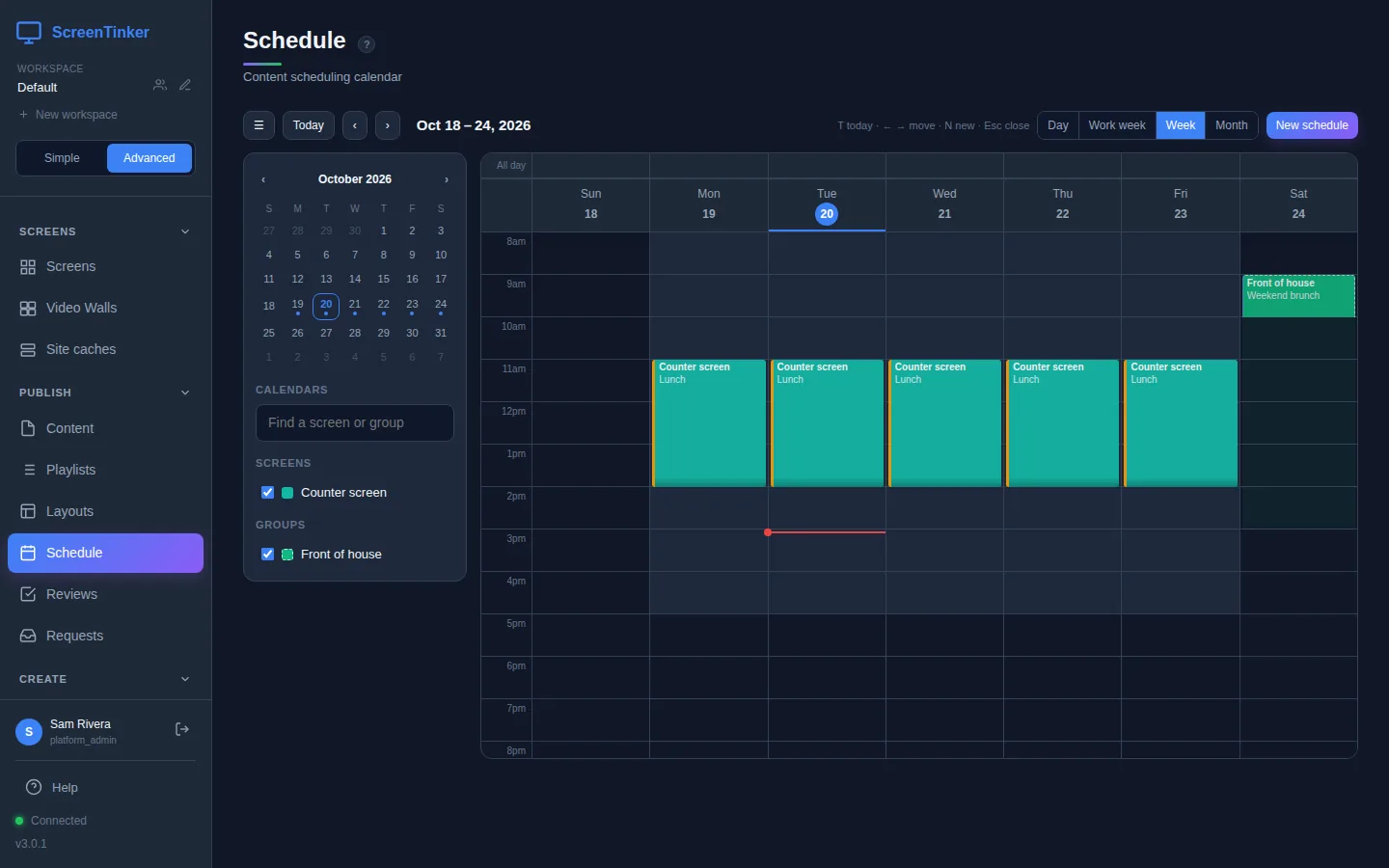
You can work the calendar with the keyboard too: T jumps to today, ← and → move a week, N starts a new schedule and Esc closes what is open.
Create a schedule
- Drag across the time it should run on the calendar, on the day it should start. A short form opens. Pick the screen or group and the playlist, then Save, or choose More details for every option. You can also press New schedule at the top right.
- Apply to: choose Device for one screen or Group for every screen in a group, then pick it from the list. If you have video walls, Video wall appears here too.
- Playlist override: the playlist to show while the schedule runs. Layout override can also switch the screen to a different layout for that time. Leave it on "No layout override" to keep the screen's own.
- Start Time and End Time.
- Repeat: No repeat, Daily, Weekly, Weekdays, Weekends, Monthly, on the same date or Custom days… (then tick the days under Repeat on). Repeat until stops it on a date; leave it empty to repeat for good.
- Priority (0 to 100) and Color. Priority only matters when schedules overlap; see which schedule wins.
- Press Save.
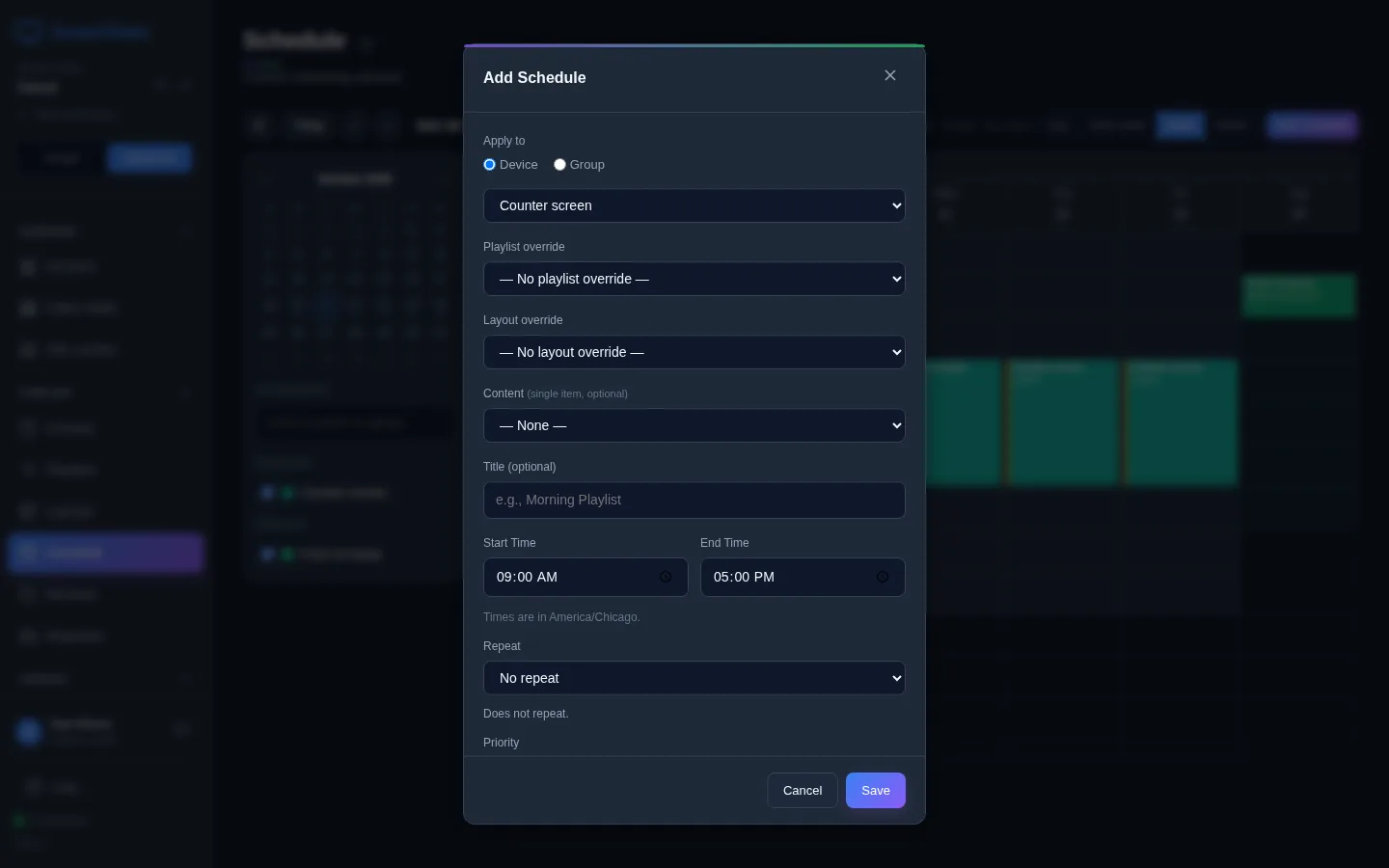
To change a schedule, drag its block to a new time, drag its lower edge to change when it ends, or click it to open the form. Right-click a block for Edit…, Duplicate and Delete. When you edit a repeating schedule, you are asked whether the change is for This occurrence or the Entire series.
The server checks schedules once a minute, so a schedule that starts now can take up to a minute to appear on the screen. A screen that is offline picks it up as soon as it reconnects.
Time zones
A schedule runs in each screen's own time zone, not yours. A group schedule for 9 am starts at 9 am local time on every screen in the group, even when they are in different time zones. The form tells you which zone the times are in, for example "Times are in America/Chicago."
A screen reports its time zone when it connects, from the device's own settings. If a screen's schedules start at the wrong hour, check the time zone on the device itself (the TV, player or computer). A video wall runs on one clock for all its panels.
Until a screen has reported a time zone, its schedules use the server's clock. If that is not the time zone your screens are in, set each screen's time zone, or set the server's.
When schedules overlap: which one wins
A screen shows one playlist at a time. When two schedules cover the same moment, ScreenTinker picks one, in this order:
- A schedule for the screen itself beats a schedule for its group.
- Then the higher Priority wins.
- If they are still tied, the older schedule wins.
So to make a special event win over the everyday schedule, give it a higher Priority. Schedules are never mixed together: the winner's playlist plays on its own, and the screen's normal playlist comes back when no schedule is running.
If your organization uses head office (corporate) playlists, a playlist set by head office wins over all schedules on the screens it covers. The calendar shows those schedules as paused.
Check what a screen will show
Open the screen (from Screens) and choose the Preview at… tab. Pick a date and time, or use Now, Tomorrow 9:00 or Next Monday 9:00. You see a timeline of the day (or of 7 days), a preview of what plays at that moment, and under Why, every schedule that applies and why it did or did not win.
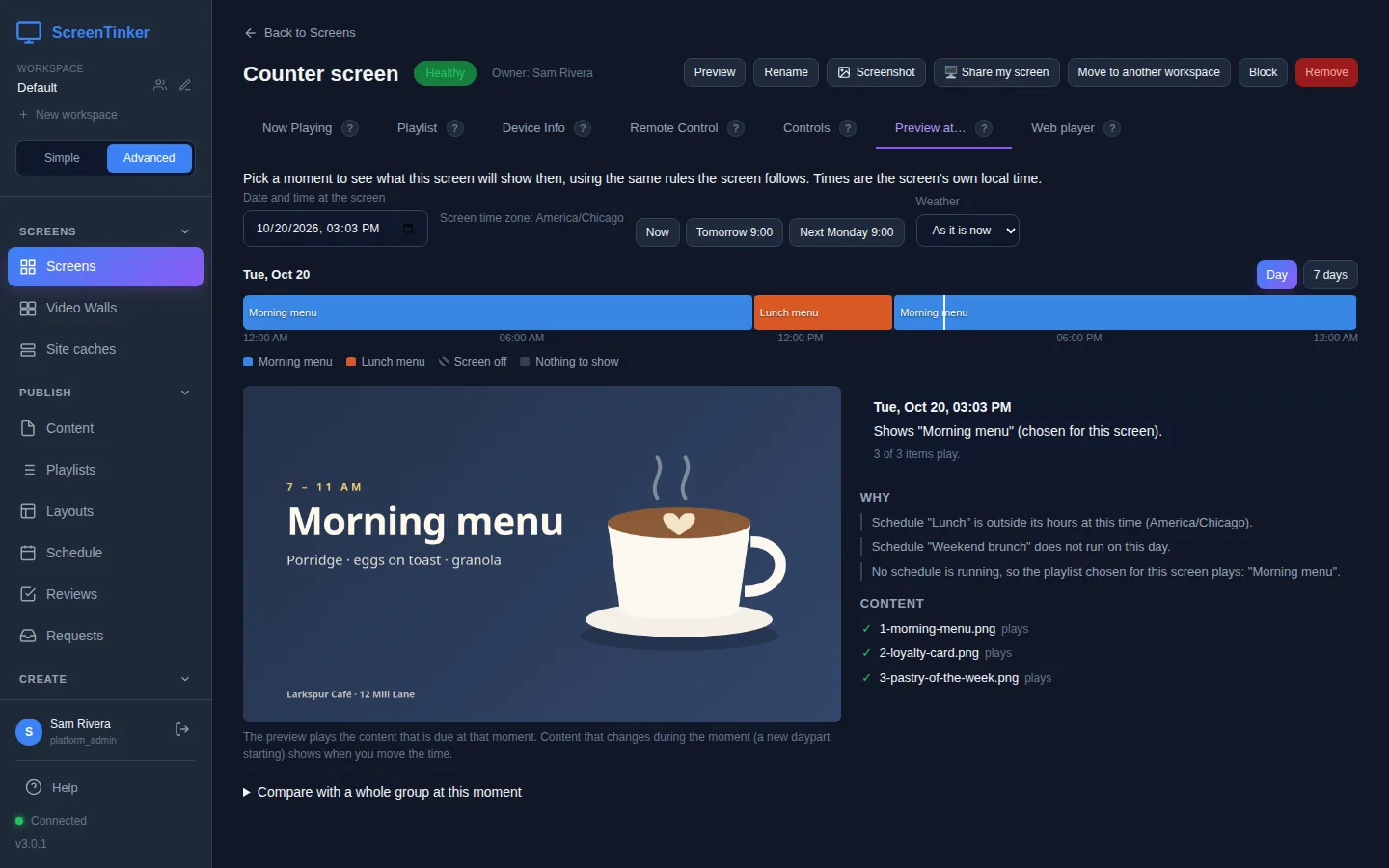
The preview uses exactly the same rules as the screen, so if it says Lunch menu at 12:30 on Thursday, that is what the screen will show.
Limit one item to certain times
Sometimes you don't need a whole second playlist, just one slide that should only appear at certain times: a breakfast special that stops at 11, or a weekend offer. Do that inside the playlist:
- Open the playlist in Playlists.
- On the item's row, click the clock icon (Schedule).
- Press + Add schedule block, tick the days, and set From and To (choose "end of day" to run until midnight). Starts and Ends dates are optional.
- Add more blocks if the item should play at several times; it plays during any of them.
- Press Save schedule, then Publish the playlist.
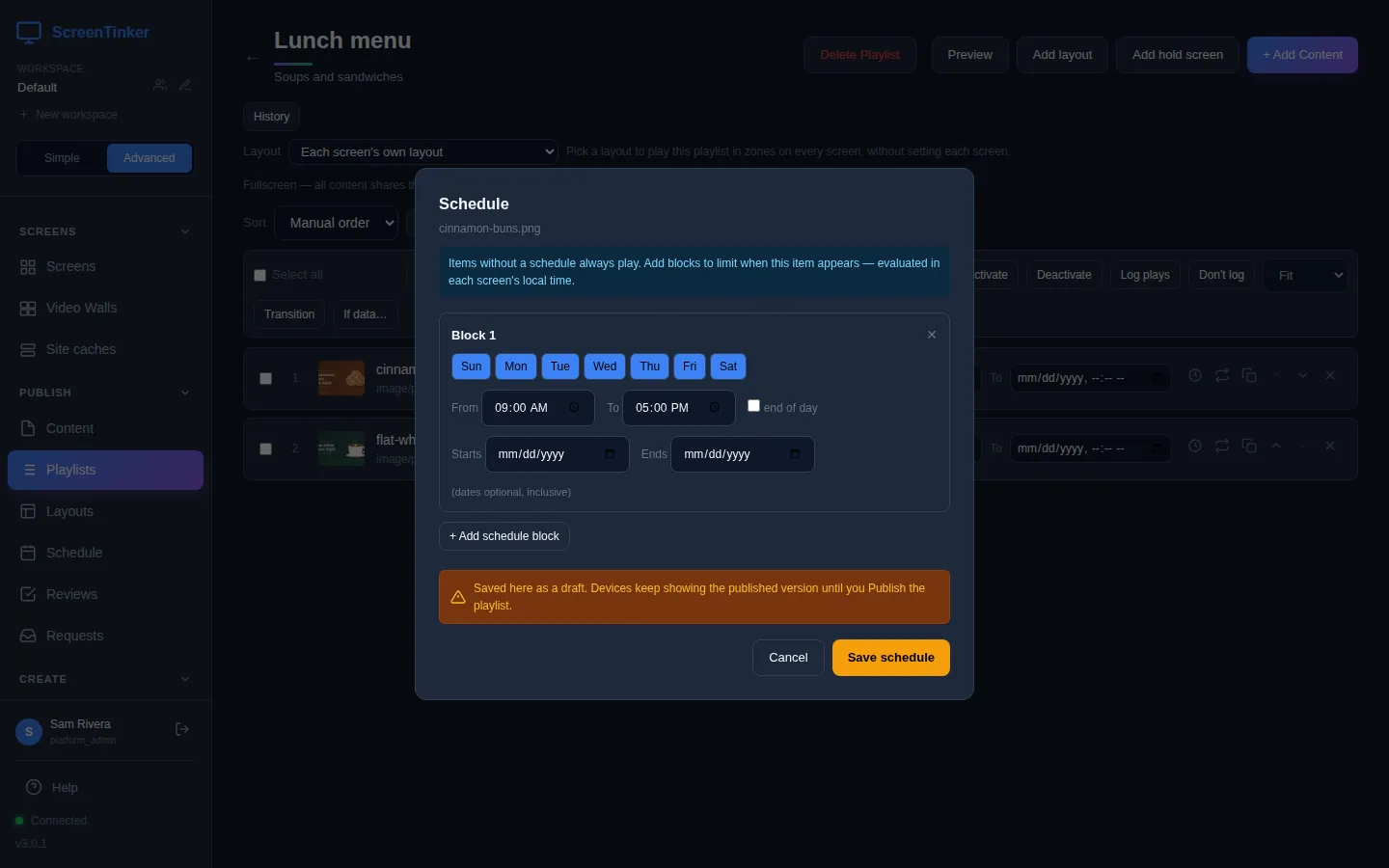
An item schedule is saved as a draft. Screens keep showing the published playlist until you press Publish. If every item in a playlist is outside its hours, the screen shows "Nothing scheduled" until one comes back.
Related features
- Turning screens on and off at set times is a power schedule, not a content schedule. It's set separately for each screen or group.
- Interrupting a screen right now, for an announcement or an emergency, is done with Triggers, Emergency feeds and Alerts. These take over whatever is scheduled.
FAQ
My schedule started but the screen still shows the old playlist.
Wait a minute: schedules are checked once a minute. Then check that the scheduled playlist has been published, and open Preview at… on the screen: the Why list says whether another schedule won.
Can a schedule run overnight?
Yes. Set an end time that is earlier than the start time, for example 10 pm to 6 am. The calendar draws it as two blocks, one on each day.
Does a group schedule override a screen's own schedule?
No. A schedule for the screen itself always wins over a group schedule, whatever their priorities.
Try it on your own screens
Start a 14-day Pro trial on hosted ScreenTinker: up to 15 screens, every feature, no credit card.
Or host it yourself, free and open source: self-hosting guide · GitHub